
Cài đặt & liên kết KidSafe trong 3 bước
Cài app và tạo mã liên kết trên điện thoại, rồi cài KidSafe lên thiết bị của con — máy tính Windows hoặc điện thoại Android — và nhập mã. Hoặc liên kết bằng tài khoản phụ huynh.
Khoảng 10 phút · không cần rành kỹ thuậtCài app trên điện thoại
 Quét để tải
- 1Mở app → Đăng ký / Đăng nhập bằng số điện thoại.
- 2Bật thông báo cho app — cần cho cách liên kết bằng tài khoản phụ huynh (mục Cách khác).

Tạo mã liên kết trên điện thoại
Làm trên điện thoại trước, trước khi đụng tới máy tính — bạn sẽ có mã 6 ký tự để nhập lúc cài.
Ở màn “Bạn chưa liên kết với máy tính”, bấm Liên kết ngay.
Đã liên kết một máy rồi? Vào Tài khoản → Thêm thiết bị để liên kết thêm — mỗi máy một mã riêng.
- 1Mở luồng ở trên. Nếu app hỏi loại thiết bị, chọn Thiết bị mới.
- 2Chọn con đã có — hoặc bấm Thêm hồ sơ trẻ mới rồi nhập tên con. Sau đó đặt Tên gợi nhớ cho máy (VD: PC phòng ngủ).
- 3Bấm Tạo mã liên kết → hiện mã 6 ký tự.
Cài lên máy tính Windows của con & nhập mã
Mặc định là English + Vietnam. Chọn Tiếng Việt sẽ tự chọn Vietnam. Bấm Install → và đợi tới khi hiện “Cài đặt thành công!” → bấm Đóng.
- 1Biểu tượng KidSafe ở khay hệ thống (góc phải) mở cửa sổ “Liên kết thiết bị” → chọn Nhập mã liên kết.
- 2Gõ mã 6 ký tự từ Bước 2 vào ô “Mã liên kết:” → bấm Liên kết. Xong ✓
Cài lên điện thoại Android của con & nhập mã
- 1Cài rồi mở KidSafe Agent trên điện thoại của con.
- 2Gõ mã 6 ký tự từ Bước 2 → bấm Liên kết. Vẫn đúng mã đó, giống như với máy tính.
- 3App sẽ dẫn bạn cấp lần lượt các quyền cần thiết (xem bên dưới). Chưa cấp đủ quyền bắt buộc thì chưa xong.
Các quyền Android sẽ hỏi. Mỗi quyền bật một lớp bảo vệ cụ thể — cấp ngay trên máy của con, theo đúng thứ tự app đưa ra. Màn hình luôn hiện còn thiếu quyền nào và tự cập nhật khi bạn từ Cài đặt quay lại.
- 1Trợ năng (Accessibility) — để biết app nào đang mở và trình duyệt đang ở địa chỉ nào. Thiếu quyền này thì chặn app và chặn web đều vô hiệu.
- 2Truy cập dữ liệu sử dụng — đo thời gian dùng từng app. Cần cho giới hạn giờ.
- 3Hiển thị trên ứng dụng khác — để vẽ màn hình khoá và thông báo “đã chặn” đè lên trên.
- 4Không giới hạn pin — để Android không ru ngủ agent, vì ngủ là bảo vệ tắt mà không báo gì.
- 5Quản trị thiết bị — chống gỡ cài đặt: bạn được cảnh báo ngay khi có người tìm cách gỡ app.
- 6Kết nối VPN — lớp lọc web thứ hai, cho các trình duyệt giấu địa chỉ. Không bắt buộc nhưng nên bật.
- 7Vị trí, kể cả khi chạy nền — chỉ cần nếu bạn muốn xem vị trí và đặt vùng an toàn. Bỏ qua thì mọi thứ khác vẫn chạy.
- 8Thông báo và tự khởi động cùng máy — để agent quay lại sau mỗi lần khởi động lại điện thoại.
Hai điểm khác máy tính, nói trước cho khỏi bất ngờ: điện thoại Android không chụp được ảnh màn hình chạy ngầm — hệ điều hành không cho — và thay vì tắt máy từ xa thì điện thoại sẽ khoá màn hình. Ngược lại, vị trí và vùng an toàn thì chỉ Android mới có.
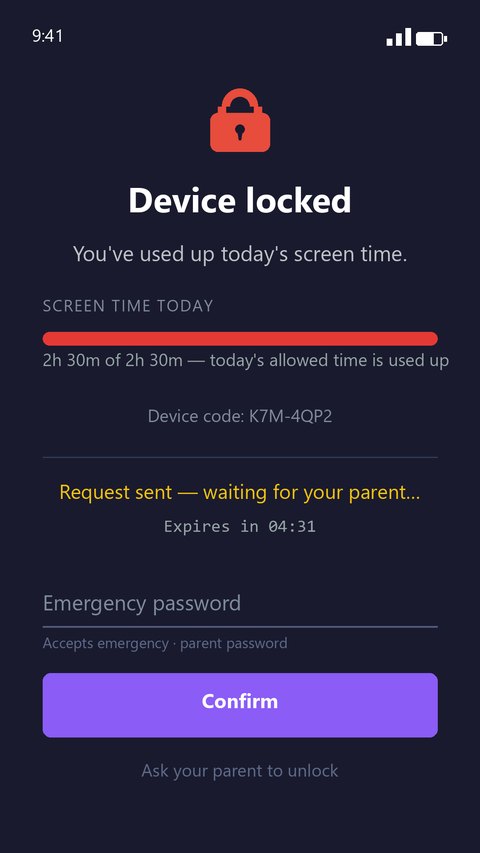
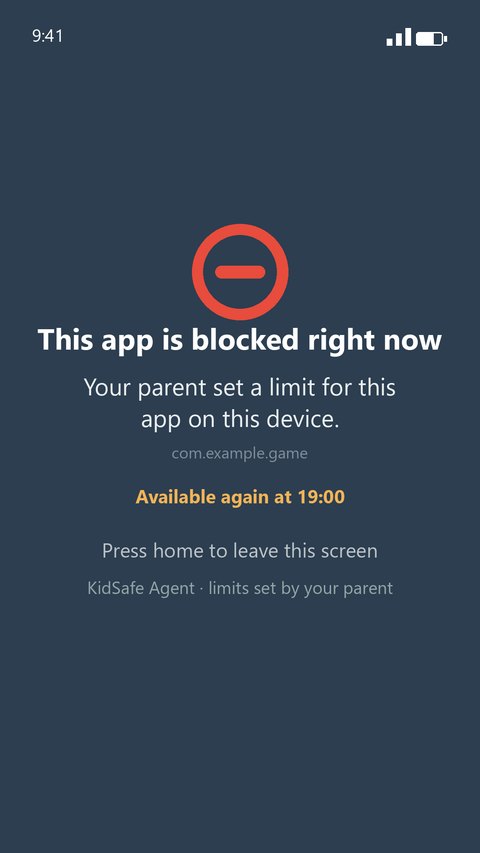
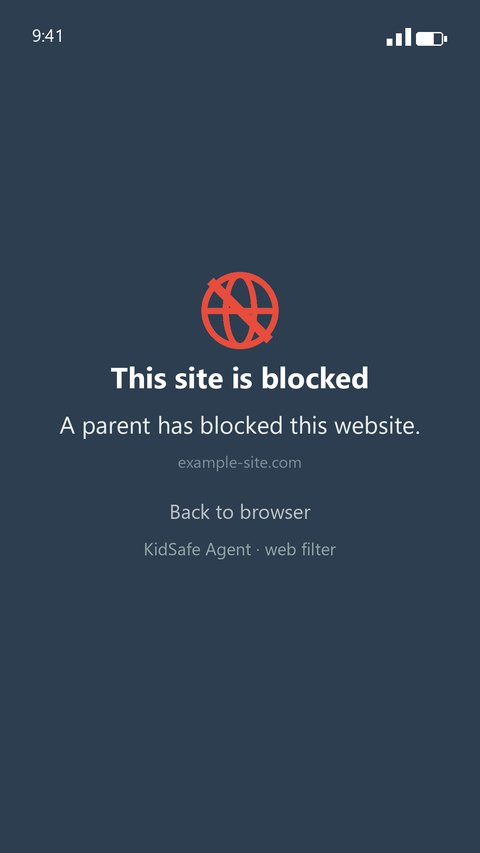
Màn hình con nhìn thấy
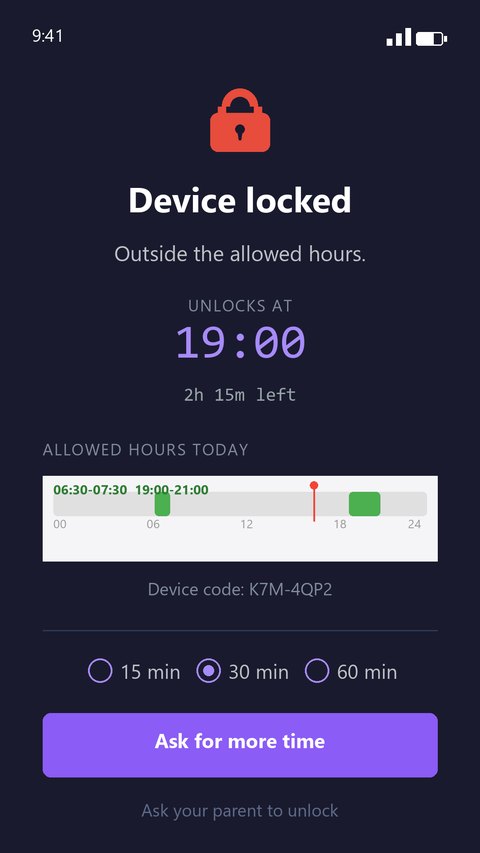
Ngoài giờ cho phép: máy khoá, con thấy còn bao lâu nữa mở
Hết hạn mức trong ngày: con xin thêm giờ, bố mẹ duyệt từ xa
Mở app bị chặn: hiện màn chặn, báo mấy giờ mới dùng lại được
Vào web bị chặn: chặn ngay trên trình duyệt của con
Không muốn gõ mã? Liên kết bằng tài khoản phụ huynh
- 1Bạn có thể bỏ qua Bước 2. Sau khi cài, trong cửa sổ “Liên kết thiết bị” chọn Nhập tài khoản phụ huynh.
- 2Nhập số điện thoại đã đăng nhập app → bấm Gửi yêu cầu kết nối.
- 3Trên điện thoại, bấm Chấp nhận ở thông báo “Yêu cầu kết nối”. Xong ✓
Cần điện thoại đang đăng nhập và đã bật thông báo.
Cài lại & xử lý nhanh
Máy tính từng liên kết, giờ cài lại thì sao?+
Trên điện thoại vào Tài khoản → chọn thiết bị cũ → Sinh lại mã kết nối, rồi nhập mã đó vào máy tính (Cách A). Không tạo thiết bị mới — dùng lại thiết bị cũ để giữ nguyên lịch & cấu hình.
Mã liên kết báo hết hạn hoặc đã dùng?+
Mỗi mã sống 24 giờ và dùng 1 lần. Tạo mã mới trên app rồi nhập lại.
Điện thoại không nhận thông báo kết nối (Cách B)?+
Kiểm tra app đã đăng nhập đúng tài khoản và đã bật thông báo, rồi bấm Gửi yêu cầu kết nối lại trên máy tính.
Cài lại báo “tamper protection is active”?+
Mở cửa sổ KidSafe → đăng nhập mật khẩu phụ huynh → tab Quản lý → Tắt bảo vệ, rồi cài lại.
Có bảo vệ được iPhone / iPad không?+
Chưa. App cài trên máy con chạy trên Windows và Android 8.0+. iPhone/iPad chỉ dùng được ở vai trò điện thoại phụ huynh, với app KidSafe Admin.
Một giấy phép dùng được cho cả máy tính lẫn điện thoại?+
Một giấy phép dùng cho một thiết bị, loại nào cũng vậy. Máy tính và điện thoại là hai thiết bị nên cần hai giấy phép — giá mỗi cái như nhau. Có thể mua chung một đơn.